Use Teamvibe in Microsoft Outlook
These steps are for each employee. After your organization admin completes the Teams integration guide, Teamvibe is already available in Outlook. Use new Outlook for Windows or Outlook on the web. If Teamvibe was just added in the Teams admin center, it may take from a few minutes to several hours to show up in Outlook. Try restarting Outlook or check back later before continuing.
Sync delay: Teamvibe can take from minutes to hours to appear in Outlook after your admin pins it in Teams. This is normal — wait or restart Outlook, then open More apps again.
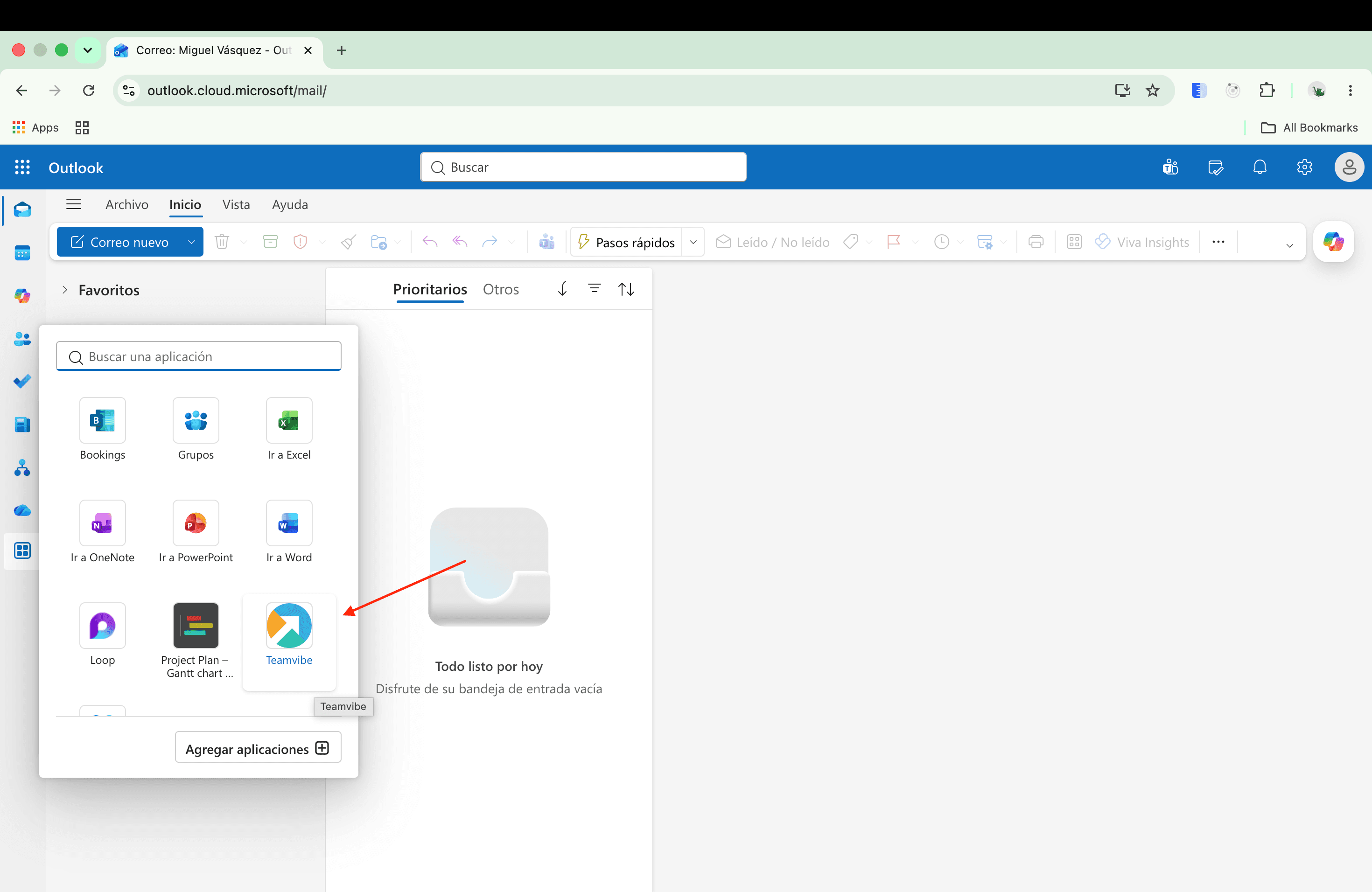
In the left navigation bar, select More apps — the last icon at the bottom of the sidebar

In the More apps panel, Teamvibe is already listed. Select it to open it.
After you open Teamvibe, its icon appears in the navigation bar. To pin it for quick access, hover over the Teamvibe icon, right-click, and select Pin

To change where Teamvibe sits in the sidebar, right-click the Teamvibe icon and hold, then drag it to the position you want
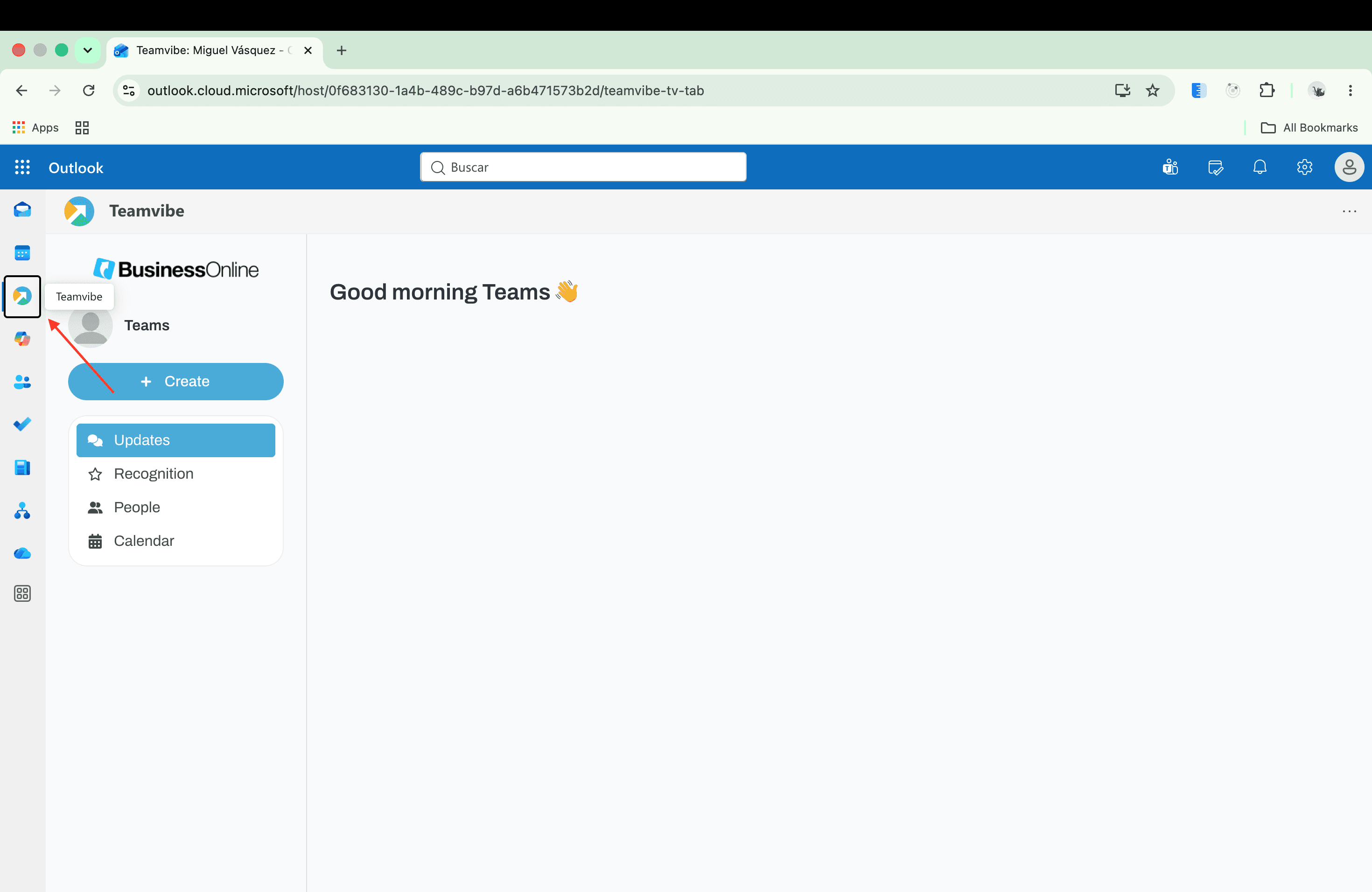
On first use, sign in with your Microsoft work account if prompted. Your email domain must be listed in Teamvibe Allowed Domains, and your organization admin must have linked your Microsoft tenant in the browser (see the Teams integration guide).
If Teamvibe does not appear
Work through these checks in order:
- Confirm you are using new Outlook (desktop) or Outlook on the web, not classic Outlook
- Confirm your admin completed the Teams integration guide and allow from a few minutes to several hours for the app to sync to Outlook
- Open More apps from the bottom of the Outlook navigation bar and look for Teamvibe. If it is missing, ask your IT admin to confirm the app is pinned in the Teams admin center
- Confirm your Teamvibe organization admin completed browser setup: Microsoft login enabled, your email domain in Allowed Domains, and an org admin signed in with Continue with Microsoft once
- Remember: admins cannot pin Teamvibe in Outlook for everyone. Each user pins the app themselves using the steps above